
Switch your shop to Shopify POS when keeping the register and the website in sync takes real work every week: stock counted twice, customers in two lists, sales reports stitched together by hand. If you sell only in person and your current system runs well, there’s less to gain.
In this article
What are the signs it’s time to switch to Shopify POS?
If several of these sound familiar, running two systems is likely costing more than it saves.
| Sign | What it looks like day to day |
|---|---|
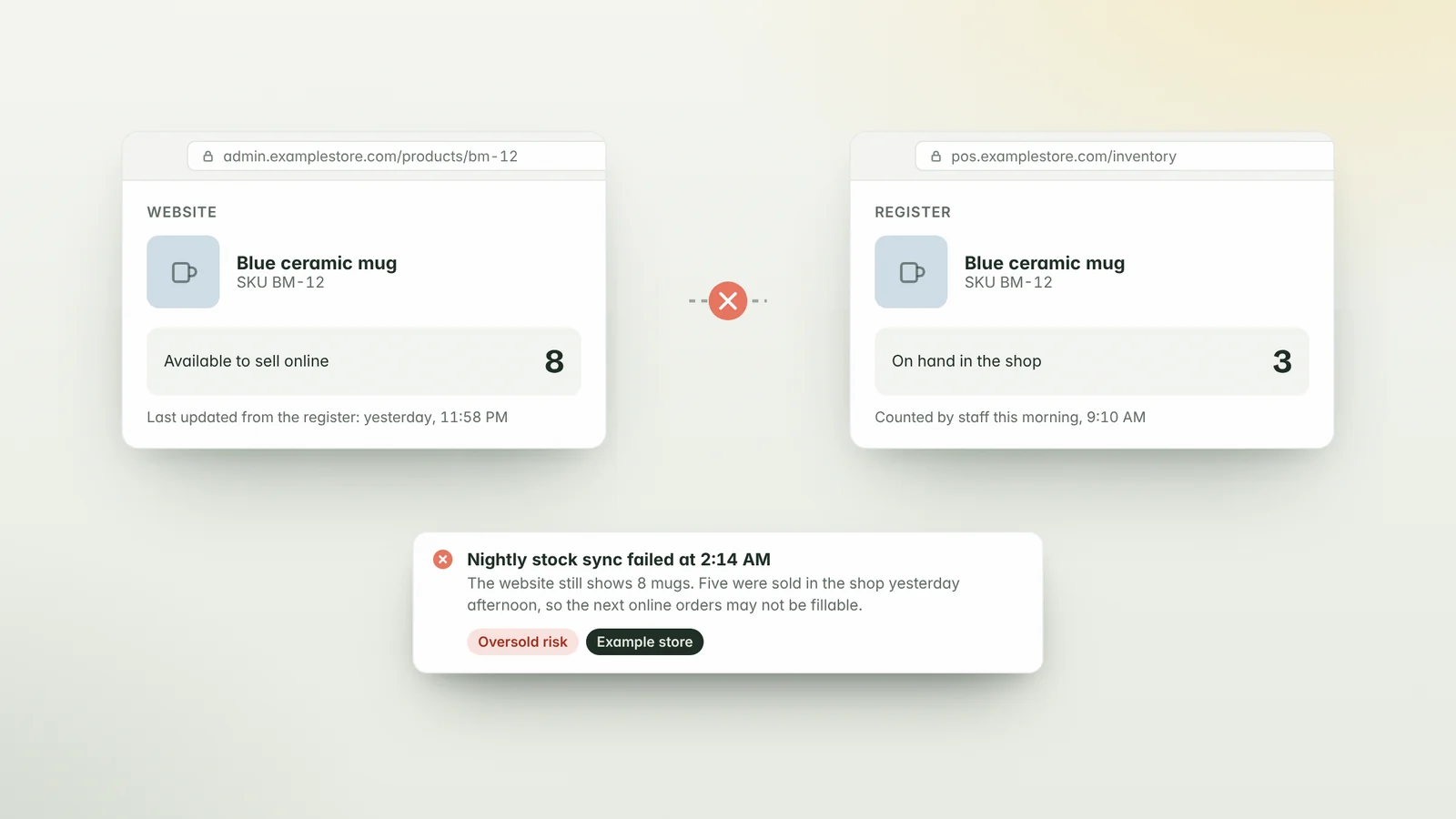
| Stock doesn’t match between channels | Stock is updated by hand or by a nightly sync that breaks, so you sell online what’s already gone from the shelf |
| Customers are split in two | You can’t see your best customers across shop and website, and staff can’t see online orders when someone brings an item back |
| Reports don’t add up | Sales, refunds and payouts sit in two places, and month-end means stitching exports together in a spreadsheet |
| Online-to-store services are hard | Competitors offer pickup in store and returns at any location; for you, each one is a manual workaround |
| The register is aging or expensive | Hardware, licenses and support renew at higher prices while devices slow down or lose vendor support |
| Opening a new location is painful | Every new site means another license, and products, prices and staff set up again from scratch |
If you also sell online on another platform, many of these come from running two systems. Moving both to Shopify is often the bigger win; our article on when to migrate to Shopify covers it.
When should you wait, or stay where you are?
We’d tell a shop to wait, or stay on what it has, in these cases.
- You run table service. Shopify POS is built around retail checkout. Its help center doesn’t describe table maps, kitchen tickets or coursing, which is what restaurant systems are made for.
- You track individual serial numbers. Bikes, instruments and electronics with warranties often need this. Shopify’s help center doesn’t describe built-in serial tracking, so plan on an app and test it at the counter first.
- Your stores trade in different currencies. With Shopify Payments, the store currency has to match the local currency of your physical locations.
- You have more locations than your plan allows. Basic, Grow and Advanced allow 10 locations. Plus allows 200.
- Layaway or loyalty is central to how you sell. There’s no layaway feature, though partial payments are built in. Loyalty programs run through apps, so check the app works at the counter, not only online.
- The holiday rush is coming. Don’t switch registers between October and December, when staff would be learning a new screen during the busiest weeks of the year.
- Your current contract hasn’t ended. Check notice periods with your current POS and payment provider, and any hardware leases.
- Your devices are old. Shopify POS runs on iOS 15.1 or Android 10 and later today. From January 2027 the minimum rises to iOS 18 and Android 13, with older devices to be updated by June 6, 2027, so older iPads may need replacing.
How do you decide if Shopify POS fits your counter?
A POS decision is mostly about what happens at the counter on a busy Saturday. Start there, not with features.
- Write down every kind of sale your counter handles. Include the awkward ones: returns with and without a receipt, exchanges, special orders, gift cards, store credit, layaways, split payments, tax-exempt sales, staff discounts and loyalty points, plus anything a key customer group relies on, such as trade accounts or a membership discount.
- Check each one against Shopify POS. Mark it as included, needs POS Pro, needs an app (name it and its cost), or not possible. The cost section shows what POS Pro adds.
- Count locations, registers and staff. POS Pro is priced per location, so locations drive the subscription. Card fees usually become the bigger cost as sales grow.
- Walk the counter for hardware. List your card readers, receipt printers, barcode scanners, cash drawers and label printers. Some can stay. Card readers usually can’t, because in-person payments through Shopify Payments need a reader Shopify supports.
- Decide what data moves. Products with barcodes, stock by location, customers, gift card balances, store credit and loyalty points. Sales history is useful for reports but rarely needs to move in full.
- Choose the order. Online store first, shop first, or both at once. Website first lets your team learn Shopify before the counter changes; both at once means one data move and one stock count instead of two.
- Plan training and the switch day.
- ManagerStaff practice on the real hardware before the first customer.
- OwnerPick the date, and the policy for returns of pre-switch sales.
What does Shopify POS cost?
Shopify POS comes in two levels. Every paid Shopify plan includes in-person selling at no extra cost, and POS Pro is an add-on for shops with staff, several locations or pickup in store. You may still see the included level called POS Lite; Shopify no longer uses that name.
Shopify plans for selling in person
| Plan | Per month | In-person card rate | POS staff | Returns | POS Pro |
|---|---|---|---|---|---|
| Basic | $39, or $29 billed yearly | 2.6% + 10¢ | Limited | At the original location | $89 per location |
| Grow | $105, or $79 billed yearly | 2.5% + 10¢ | Unlimited logins | At the original location | $89 per location |
| Advanced | $399, or $299 billed yearly | 2.4% + 10¢ | Unlimited logins | At the original location | $89 per location |
| Plus | From $2,300 on a 3-year term | 2.3% + 10¢ | Unlimited, with roles and permissions | At any location | First 20 locations included |
Basic, Grow and Advanced allow 10 locations and Plus allows 200. Plus includes POS Pro for the first 20 locations, and for up to 200 when the stores use Shopify Payments. Two older plans, Starter and Retail, are closed to new stores. Retail bundled one POS Pro location with a simple online store, and a shop that leaves it can’t go back.
What POS Pro adds
POS Pro costs $89 per location per month, billed yearly. It’s worth it once staff work the counter without you, or customers expect to buy online and collect in store.
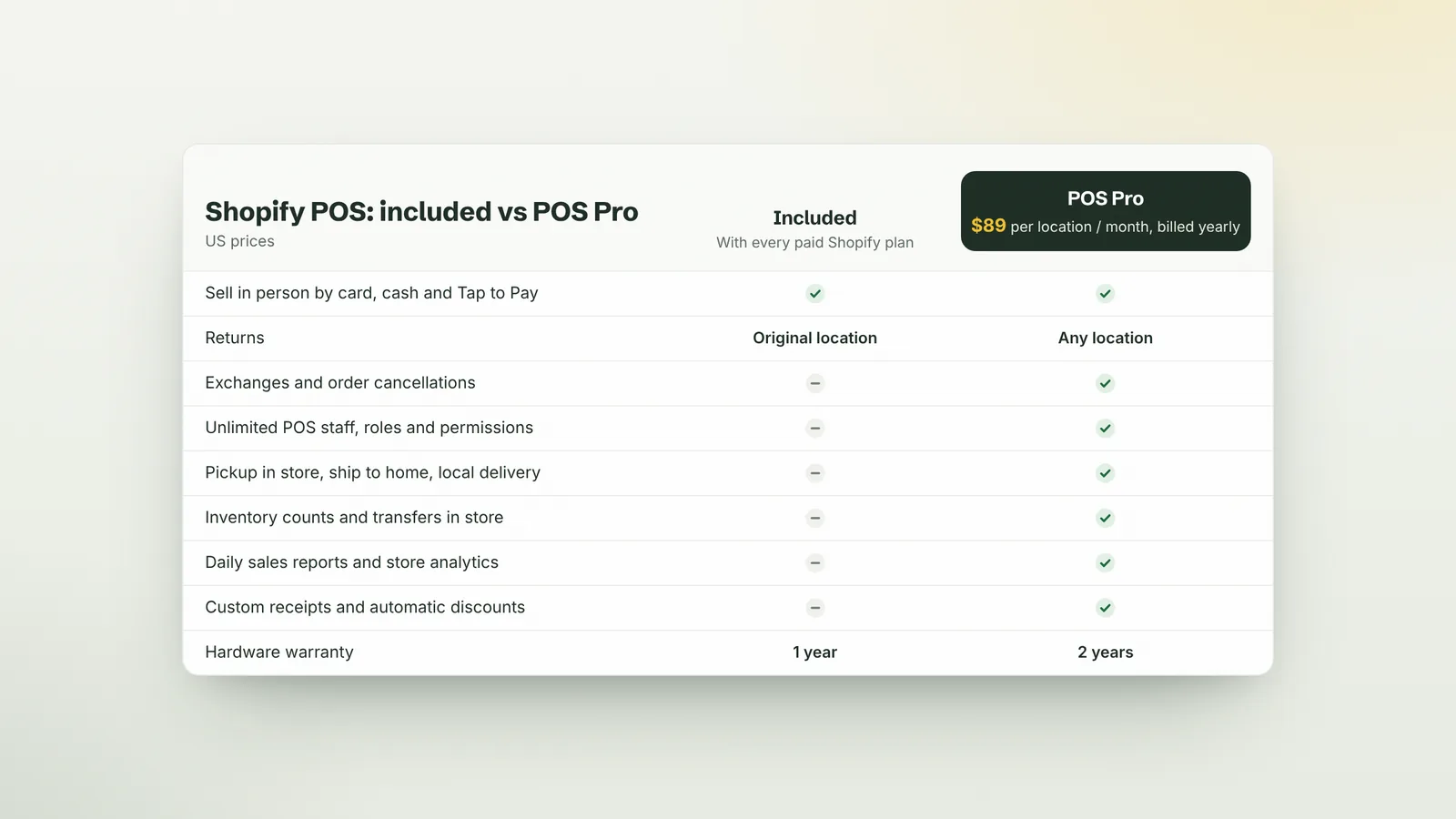
| Feature | Included with every paid plan | POS Pro |
|---|---|---|
| Sell in person by card, cash and Tap to Pay | Yes | Yes |
| Returns | At the original location | At any location |
| Exchanges and order cancellations | No | Yes |
| Staff | POS logins, limited on Basic | Unlimited POS-only staff, with roles and permissions |
| Pickup in store, ship to home and local delivery | No | Yes |
| Inventory counts and transfers in store | No | Yes |
| Daily sales reports and store analytics | No | Yes |
| Custom printed receipts, automatic discounts, saved carts | No | Yes |
| Shopify hardware warranty | 1 year | 2 years |
You can try POS Pro before paying for it. When the trial ends, each location goes back to the included features unless you choose POS Pro. Shopify also runs hardware offers from time to time; in October 2026 it was including free hardware with a year of POS Pro, worth $2,400 in the US.
Hardware
The POS app runs on an iPad, iPhone or Android device you already own, unless you use a handheld that runs it. You can also start with no card reader at all: Tap to Pay on iPhone (XS or newer) and on compatible Android phones takes contactless cards on the phone itself, at the same in-person rate. Chip and swipe cards still need a reader.
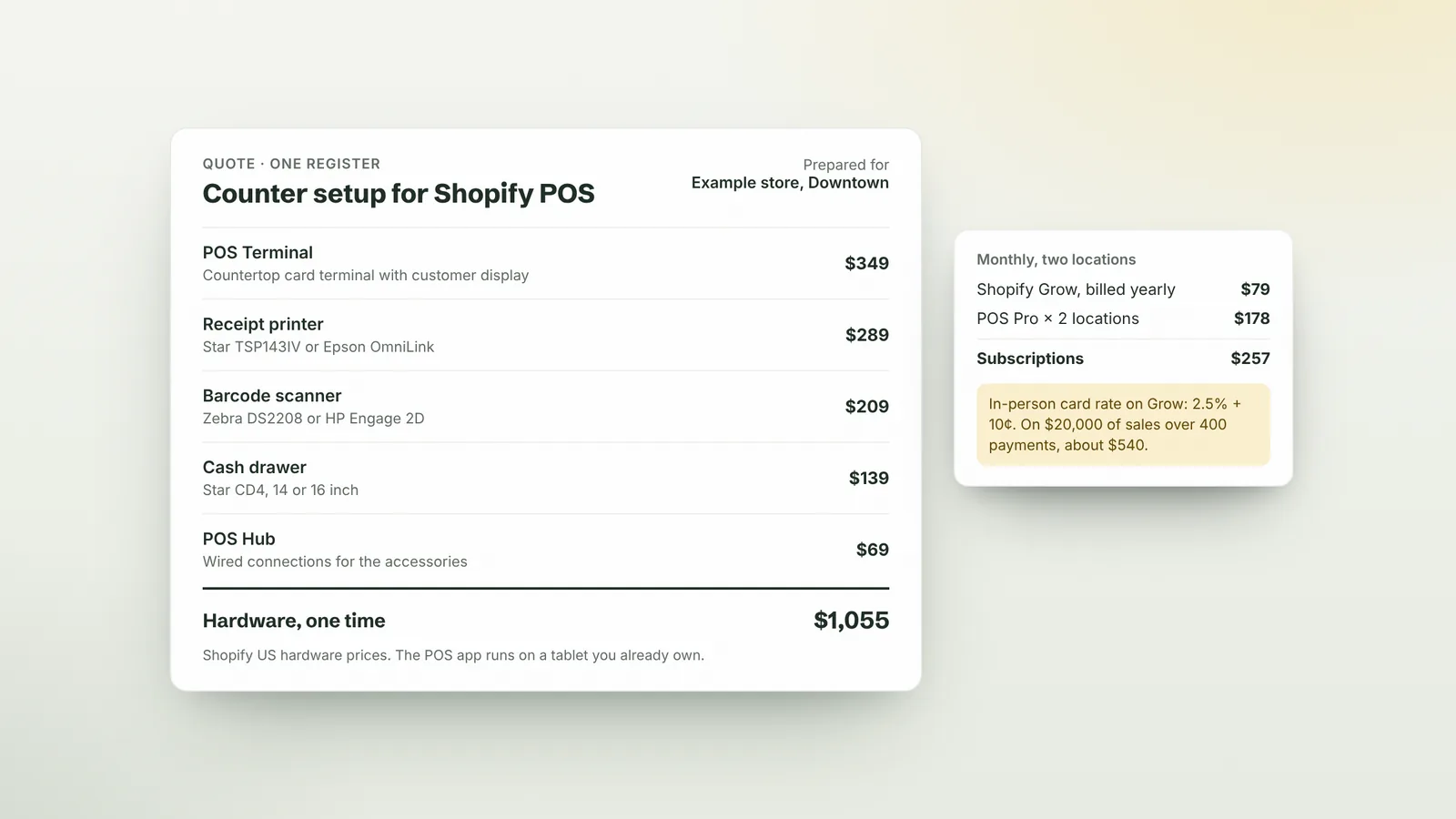
| Device | Price | What it’s for |
|---|---|---|
| Tap & Chip Card Reader | $49 | Card payments next to a phone or tablet |
| POS Terminal | $349 | Countertop payment terminal with a customer display |
| Victa Mobile (Verifone) | $399 | Handheld that runs Shopify POS, for selling on the floor |
| POS Hub | $69 | Wired connections for printer, scanner and cash drawer |
| Receipt printer | from $289 | Printed receipts |
| Barcode scanner | from $209 | Scanning at checkout and during counts |
| Cash drawer | $139 | Cash, opened by the POS |
Shopify has discontinued POS Go. Its handheld mode works until May 26, 2027, after which it works only as a countertop payment terminal.
What a two-location shop pays
Take a gift shop with two locations on Grow, billed yearly, taking about $20,000 a month by card across 400 sales.
| Cost | Per month |
|---|---|
| Shopify Grow | $79 |
| POS Pro, two locations | $178 |
| Card fees at 2.5% + 10¢ | $540 |
| Running cost | $797 |
Equipping both counters adds $2,110 in hardware, once. Card fees are already the biggest line, and they grow with sales while the subscriptions stay flat. A single counter run by the owner can start much smaller: the plan, no POS Pro, and Tap to Pay on a phone instead of a terminal.
Back-office apps you may need
Purchase orders and inventory transfers between locations are built into the Shopify admin. The Stocky app closed on August 31, 2026. If you need weighted-average or landed cost, or want to email purchase orders to suppliers, you’ll need an app.
Does Shopify POS work offline?
Partly. Cash and manual payments keep working offline. Offline card payments have to be switched on in advance and only work with certain readers, not with Tap to Pay on a phone. They aren’t sent to the card processor until you reconnect, which Shopify says should ideally be within 24 hours, so a card can still be declined afterward.
If your connection is unreliable, keep a phone hotspot at the counter as a backup, and test an offline sale before switch day.
How do you migrate POS data from Square, Clover or Lightspeed?
Products and customers move easily from most systems. The work is in everything around them: stock by location, gift card balances, store credit, loyalty points and the sales you made before the switch.
| Option | Cost | What it moves | What it leaves to you |
|---|---|---|---|
| Shopify’s Store Migration app | Free | From Square: products (as drafts), customers and stock per location. From Clover: products and customers, still in early access. Lightspeed R/X (Vend) is also listed. | Order history, reviews, and for Clover, stock by location |
| Your POS’s own export, imported by CSV | Free | Products and customers. Shopify’s own Lightspeed guide uses this route. | Orders, and the cleanup of every file |
| Data migration to Shopify POS, run by Shopify’s partner LinkToAny | $500 | Products, customers and images, for up to 10 locations | Everything beyond those three |
| Matrixify | $20 to $200 per 30 days | Whatever you can put in its spreadsheets, including stock by location | Preparing and checking every sheet |
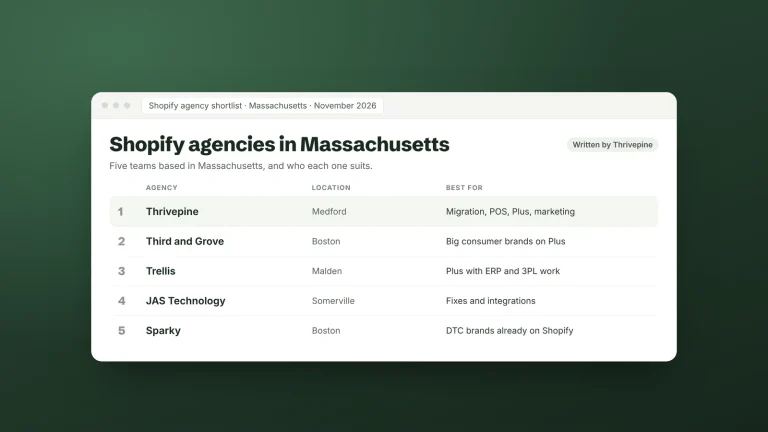
| An agency, such as Thrivepine | Quoted per project | All of the above, plus the items below and the switch day itself | Your sign-off on each decision |
Whichever you choose, plan these by hand:
- Gift card balances and store credit. Customers expect them to work on day one. The simplest route is a new Shopify gift card for each open balance, created in the admin, with a list matching old card numbers to new codes so staff can check. Test a few before opening.
- Loyalty points. They live in your loyalty app, not in the POS. Check whether the new app can import them.
- Barcodes and labels. Make sure every barcode on your shelves scans to the right product in Shopify before the first sale.
- Taxes by location. Check tax settings for every store, especially if you sell across state lines.
- Returns of things bought before the switch. Those sales aren’t in Shopify. Decide your policy (refund through the old system, store credit, or exchange only) and brief staff before opening.
- Sales history. Keep the old system readable for a while, or export the reports you need, so year-over-year comparisons still work.
What does a good switch day look like?
The switch itself takes one evening. Once your data and hardware are ready, allow about a week for setup and training, then check closely through the first week of sales.
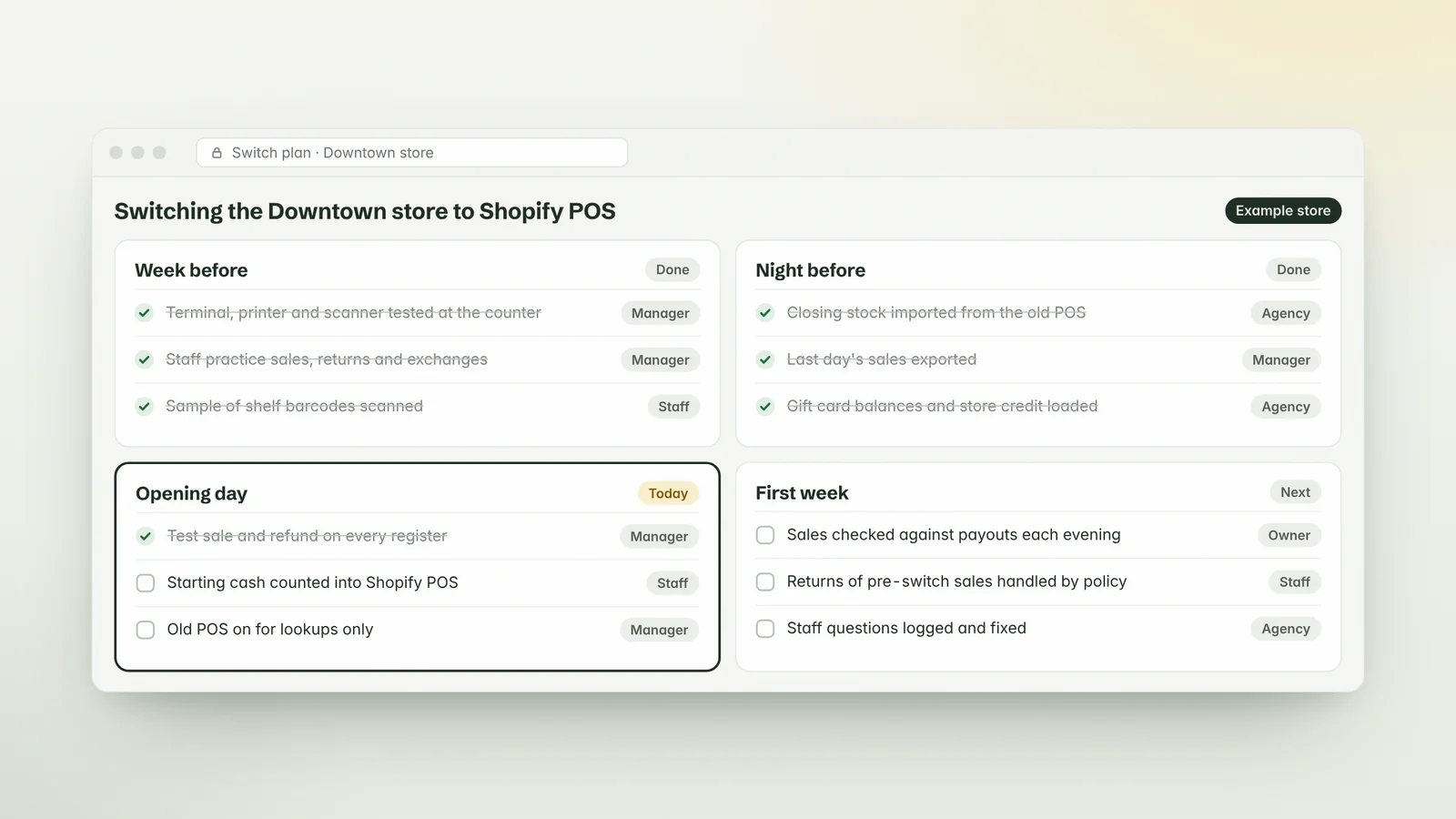
The week before
- Set up and test every device at the counter it will live on
- Staff practice sales, returns and exchanges on the real hardware
- Scan a sample of shelf barcodes and check taxes for each location
The night before
- Do the final stock count, or import closing stock from the old system
- Export the last day’s sales from the old POS
- Load gift card balances and store credit
Opening day
- Run a test sale and a refund on every register before the doors open
- Count the starting cash into Shopify POS
- Keep the old system on for lookups only, never for sales
The first week
- Each evening, check sales against Shopify’s reports and payouts
- Handle returns of pre-switch sales by the policy you agreed
- Keep a list of staff questions and fix the setup behind them
Pick a quiet weekday for the switch, never the day before a sale or a holiday weekend. If you have several stores, switch one first and roll out the rest once it has run cleanly for a week or two.
Planning the switch for your shop?
Tell us how many locations and registers you run and what you use today. We’ll reply within one business day.
Moving your online store too?
Shopify POS works best when the website runs on Shopify as well, because both then share one set of products, stock and customers. If your online store is still on another platform, read When to migrate to Shopify, and your options for the signs it’s time, the costs to compare and the five ways to move.
Questions retailers ask about Shopify POS
How much does Shopify POS cost?
In-person selling is included with every paid Shopify plan, from Basic at $39 a month ($29 billed yearly). POS Pro adds $89 per location per month, billed yearly, and Plus includes the first 20 locations. In-person card payments cost 2.6% + 10¢ on Basic, 2.5% + 10¢ on Grow, 2.4% + 10¢ on Advanced and 2.3% + 10¢ on Plus.
What happened to Shopify POS Lite?
POS Lite was the old name for the in-person features included with every paid Shopify plan. Shopify no longer uses the name. Today there are two levels: what your plan includes, and POS Pro.
Can we keep our current card reader?
Usually not. In-person payments through Shopify Payments need a reader Shopify supports, such as its $49 Tap & Chip Card Reader, the $349 POS Terminal or the Victa Mobile handheld. Check printers, scanners and cash drawers against Shopify’s supported hardware before replacing them.
Do we need a full Shopify plan if we only sell in person?
Yes. Shopify POS runs on a Shopify plan, from Basic at $29 a month billed yearly, plus POS Pro per location if you need its features. Basic limits how many staff can log in to POS; Grow and above allow unlimited POS logins. The Retail plan, which bundled POS Pro with a simple online store, isn’t open to new stores. Your plan includes an online store, so you can start selling online later without changing systems.
How do we migrate from Square, Clover or Lightspeed to Shopify POS?
Start with Shopify’s free Store Migration app. It moves products, customers and stock per location from Square, products and customers from Clover, and lists Lightspeed R/X (formerly Vend). Order history, gift cards, store credit and loyalty points need planning on top.
Is Shopify POS Pro worth it?
If staff need their own roles and permissions, or you offer exchanges, pickup in store, ship to home, inventory transfers between locations or inventory counts on the device, yes. A single counter run by the owner often doesn’t.
Does Shopify POS work for restaurants?
It’s built around retail checkout. Shopify’s help center doesn’t describe table maps, kitchen tickets or coursing, so a restaurant system usually fits table service better.
Sources
- Shopify pricing, Shopify POS pricing and POS subscription overview
- Shopify Help: Retail plan and Starter plan
- Shopify hardware: card readers and all hardware
- Shopify Help: Tap to Pay on iPhone and Shopify changelog: Tap to Pay on Android
- Shopify Help: hardware deprecation (POS Go) and supported devices
- Shopify Help: selling offline and offline payments
- Shopify Help: purchase orders, transfers, inventory counts in POS, transitioning from Stocky
- Shopify Help: locations, gift cards, partial payments, in-person payment compliance
- Shopify App Store: Store Migration, migrating from Square, migrating from Clover, Lightspeed to Shopify
- Data migration to Shopify POS and Matrixify pricing